ads

Showing posts with label Audio. Show all posts

How to Install Old Soundmax Audio Driver in Windows 7

If you have an old laptop and install windows 7 on it, you may notice that your laptop have no audio. Sometimes device manager tells you it is installed and the volume bar work perfectly, but you can still hear no Sound. When you try to download the driver, your manufacture no longer provide updates for Windows 7, what is available only the old driver for Windows XP or Windows Vista.

Before we begin, Soundmax uses AC97 audio which is similar to Realtek AC 97 Audio. Try the AC97 audio first because sometime it did work on some model. Download Link

He is how to use that old Windows Vista or XP for Windows 7.

1. For this example we will install audio on IBM t42. First download your original XP Driver. (for t42 here is the driver: Download )

2.  Extract the driver file using 7zip or Winrar. Remember the path/location where we extract the driver file.

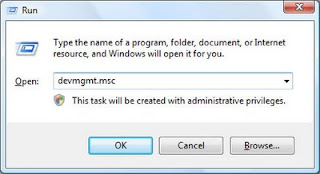
3. Now open device manager by click start and select run, type DEVMGMT.MSC

 
 2. Look at the audio controller and right and select update driver.


 3. Then select browse my computer for the Driver software

4.Click on browse and point to the driver folder we extracted ealier.

It will takes some time to find the driver file and install it. It will prompt i is not compatible but install it anyway.

How to Get The Latest Realtek Audio Drivers

Realtek is the most popular Audio devices for both laptop and desktop, the audio drivers pre-installed or provided by your computers manufacturer could be outdated. Installing the latest audio driver could increase your audio experience, here is how to download and install it.

First here is the direct link to the download page, (Version R2.75)
http://www.realtek.com.tw/downloads/downloadsView.aspx?Langid=1&PNid=14&PFid=24&Level=4&Conn=3&DownTypeID=3&GetDown=false
 if the URL changes refer to the instruction below

1. Go to Realtek Download Site : http://www.realtek.com.tw/downloads/
2. Now click on the Computer Peripheral ICs - PC Audio Codecs - High Definition Audio Codecs - Software.

3. Now you  will see "High Definition Audio Codec Term and Agreement", Click accept to and Next continue to continue to the download page.

4. Then on the download page you will see the latest drivers available, There are 2 type of driver packages you can choose which are:
  • executable file : Easy installation package, just download and double click to install.
  • ZIP File : Compressed driver package, require extraction before installation.
5. Select the driver base on your operating system.  To start download select one of the available download server from the left panel (US3, CN, US2 etc).
You might see a pop-up windows after clicking the download server link.

6. Other packages provided:
  • ATI HDMI Audio devices normally require by computers which uses ATI graphics.
  • 3D SorroundBack Beta : (Realtek 3D SoundBack restores audio effects, including surround sound, reverberation, and spatial effects, for legacy game titles when running on Windows Vista.).
You might see AC 97 audio codecs above the High definition audio codec, hoose Ac 97 if you know your computer uses AC 97. If not just use High definition Audio Codecs which from my experience always work with all laptops which uses Realtek Audio.

How to Fix No Sound/Audio From Speaker

No sound or Audio output from your internal speakers is a common problem for most devices with built in speaker such as Laptops and Tablets. Regardless what model your laptop is (Acer, HP, Compaq, Asus, Lenovo, Toshiba and etc), there is a common solution for this. Here I will point out the problems and how to solve it.

The Basic Setting You Need To Check First
1. Make sure your volume is not muted. Click on the volume Icon and click mixer, for best result max up all volume by using the slider.
Click on the mixer for more volume options.
2. Make sure you already install the audio driver. You can tell if your system does have the audio driver installed or not by checking the driver status on the device manager. Normally if your computer need an audio driver, it will prompt "no audio device installed" if you try to play any audio file.

3. Make sure your audio device is enable. You can do this by go to device manager and look at sound, video and game controller, make sure your audio is enable.

You can disable/enable your audio by right click on the audio device

p/s: If you are wondering why do people need to disable the audio? sometimes desktop user can get a separate Audio card, so they would disable the default on-board audio device, and of course this is optional.

4. I make changes to the setting, and Now the speaker does not work properly - Just use system restore to undo the changes, or click set to default setting on the audio setting (control panel).

Speaker does not work but headphone work 
The first thing to do is get a toothpick and stick it in the audio jack (gently wiggle it). This is because sometimes your audio jack sensors is jammed, and the computer thinks there is a headphone plugged in when there isn't. We use toothpick t unjammed it (you can use other object such as pin or needle).
If the toothpick does not work, try to set the speaker as default, you can read on how to do this here: http://laptop-driver.blogspot.com/2010/12/set-speaker-as-default.html

Headphone does not work, internal speaker work 
This problem is very rare, but in case it is happen to you first thing to do is make sure you are using the right jack. laptop normally have 2 jack, and desktop have 3 or 6 jack. For desktop the common color for audio jack is green. For laptop you will see a small icon located near to the jack which tells you either it is for headphone or for microphone.
Second, if you are using Realtek audio, make sure the jack setting is set to headphone instead of line out.
You can also try with another headphone, to make sure your current headphone is not the problem. Last but not least, sometimes you are using your mobile phone headphone/headset on your laptop and computer audio jack. Note that not all mobile phone headphone will work properly on laptop or desktop, sometimes you need to plug in halfway to hear the sound.

Speaker suddenly stopped/not working.
System crash, Windows update or Installing Third Party Software could interfere with your audio device. Windows update for example could install a new audio driver version, and it did install properly but the audio did not working (I get that a lot). So if your audio suddenly stopped working, there are 3 things you can do:

1. System Restore : We need to restore our computer back to where the audio is still working. This will also undo changes made by Windows Update or other software.
2. Recovery : Most notebook do have this option, for example Hp can use HP recovery manager, select hardware driver re-installation and select audio from the list.
3. Re-install the driver, try to re-install the drivers (original driver released by your notebook manufacture, not the latest driver by the device manufacture).

No sound from both internal speaker or headphone
Normally when this happen it means 3 things, your audio driver is not yet installed, your audio device is disabled or your internal speaker is broken. I already explain how to solve all this 3 problems above, to summarize the solution : Download and install audio driver for your computer, make sure your audio device is enable and if it is broken you need to replace internal speaker (You can't change notebook sound card), or get a USB audio card (it is cheap, about USD 3- 10 base on the model and functions). It is a plug and play device, which means you don't have to install driver, software or firmware, you just can use it right away.

7.1 Channel External USB Audio Sound Card Adapter

Only One side of The Speaker is Working (Left/Right)
First of all, check your jack (make sure you plug the speaker properly (external speaker). Next is to check the audio balance (right and left) on your audio manager, example I am using realtek Audio so I just need to open realtek Audio Manager and Set the slider in the midlle between left and right.

If you have other problems with your speaker do let me know in the comment section below.

Acer Conexant Audio Drivers For Windows 7

When Windows Vista, Windows 7 and Windows 8/8.1 is available, Acer use Realtek Audio devices for their notebook products. Few years back, Conexant was one of the popular audio devices for Acer model which released During Windows XP era.Unlike Realtek, conexant does not provides specific driver updates on their support site. There is different method to install the audio in windows 7, here is an example for Acer aspire 1690 and Aspire 3600 conexant audio driver installation:

Before proceed with driver  installation, just try this drivers first:

1. Conexant_acer_win7 : Download
2. Since the signature is AC97, give a try with realtek AC97 drivers : Download Link

Install by right click and select run as admin.


Method 1 : Edit the inf file.
I already write a brief instruction about this for universal notebook driver conexant audio installation.
You can read here for the installation with pictures.


Method 2: Compatibility
1. Download your original Windows XP Drivers.
Conexant Version : 6.13.10.8335 : Download

2. Extract the driver file and select "properties" and select "compatibility". Tick "run this program in compatibility mode for" select Windows XP.  Apply and OK. (example with pictures here).

Intel Audio Drivers for Microsoft Windows

Intel does provide audio drivers for download on their download center. There are more than 100 audio drivers available such as Intel® HD Graphics and Intel® Display Audio Driver, Intel HDMI. Drivers from other manufacturer also available such as Realtek and IDT.
Intel HDMI audio with intel 965 graphic
Non Tech Savvy user might find it is hard to choose the correct drivers from the very huge drivers lists.
Here is the easy way to get the proper Intel audio/sound driver for any operating system such as Windows XP, Vista, 7, 8 and 8.1:

1. Go to : http://www.intel.com/p/en_US/support/detect?iid=dc_iduu
2. Click "Check your drivers for system updates".
3. It will ask to install active x, install it.
4. Then it will scan your system and will display available download.
5. The result will not only show audio drivers but also list out any available drivers updates for your system .
6. Download and then install the recommend updates.

If the result shows that your system need to install IDT audio drivers, you need to install KB888111 first which available on Microsoft Website. However this installation only for Windows XP.
I strongly recommend to perform windows automatic update first. Base on my experience, chipset drivers is the most important drivers before installing other drivers.
If you have an Intel graphics, you only need to install the graphic drivers because it will automatically install Intel HDMI drivers.

IDT High-Definition Audio CODEC Driver - sp46649

Information:
This driver package will install IDT HD audio driver for your HP/Compaq Model.

Driver Type : Audio
Released by : Hewlett Packard
Version : 6.10.6242.0 B
File Size : 21.63MB
File Name : SP46649
Compatibility : Windows 7 (32-bit) and Windows 7 (64-bit)

Download

Fixes Includes: 
- Fixes an issue where noise is heard when playing music after enabling "EchoStop" and opening the Sound Recorder.
- Fixes an issue that occurs when running the Test Speaker in the IDT Utility, where the IDT audio icon is not displayed correctly.

Originally Released for HP Pavilion dm3, You need to get permission from HP for using this drivers for other model.

No sound after Windows Update and Upgrade

Windows updates and Windows upgrade sometimes may mess up with earlier driver configuration for your audio. Updates and Upgrade normally installed a newer driver, update the driver to the latest version that they think best for your system or re-configure the audio configuration and setting. So what to do if this happen?

First Step
Make sure you have installed the audio driver first. You can obtain the driver from the manufacture site. Example, if you have HP laptop you can go to http://h20180.www2.hp.com and select support from the menu. Navigate through each option available to look for your model and download the necessary driver.

What if there are no driver for my audio in the manufacture site?
Post your laptop model in the comment section and I'll give the download link for your audio driver.

I already install audio driver but resulting in error
Normally this refer to compatibility issue, sometimes manufacture only release drivers for certain Operating System. What i would suggest is to look for device update on the hardware manufacture site like Realtek etc. If you need help on this do let me know.

Check your Audio Setting
Make sure you have the right setting for the audio, sometimes windows update made changes to the setting.  For Windows 7 select manage audio device from control panel - hardware and sound, you will see several option and select speaker as default or test which work for you.


Realtek user have the advantage of using the audio setting by using the Realtek HD Audio Manager. Make sure you select the right option for the audio jack.


System Restore - Undo Changes
System restore let you revert back to previous state where the audio is still working. This is the easiest and the best solution to the problems. There are many restore point available to choose so select the date where the audio still working. If you need tutorial on how to perform system restore you can read here.

Why there are no restore point available?
You need to turn on/activate restore point to use it. By default windows already enable this option for C drive. Sometimes if you have optimization software such as tune up utilities , it will disable this option to give you more disk space. Remember that windows reserve some space on C for system restore.

Uninstall Updates
If your audio and sound not working after updates then you need to remove those updates. You can do this by:

1. Click Start button Picture of the Start button, clicking Control Panel, clicking Programs, and then, under Programs and Features, clicking View installed updates.

Click the update that you want to remove, and then click Uninstall. Administrator permission required If you're prompted for an administrator password or confirmation, type the password or provide confirmation.

 Select updates that you installed which cause the audio not working after the update installation. To see the changes you may need to reboot first.

Uninstall Upgrade
Removing SP1 from Windows 7
  1. Click the Start button Picture of the Start button, click Control Panel, click Programs, and then click Programs and Features.
  2. Click View installed updates.
  3. Click Service Pack for Microsoft Windows (KB 976932), and then click Uninstall.
    If you don't see Service Pack for Microsoft Windows (KB 976932) in the list of installed updates, your computer likely came with SP1 already installed, and you can't uninstall the service pack. If the service pack is listed but grayed out, you can't uninstall the service pack.
Remove windows 8.1 on windows 8
There are no option to remove windows 8.1 from windows 8 unless you are using windows media center. You can do this by using system reset (similar with system restore describe above).

Remove windows XP service pack.
Let me clarify that the best Service Pack base on my experience is SP2 which seems the most stable whenever it comes to installing drivers. To remove (downgrade you windows XP service pack you can do it by:
  1. Click Start, and then click Run.
  2. Copy and then paste the following command in the Open box, and then press ENTER:
    appwiz.cpl
  3. Click to select the Show Updates check box.
  4. Click Windows XP Service Pack 3, and then click Remove.
  5. Click Finish to restart the computer after the removal process is complete.
If you still have problems with your audio do let me know in the comment section below.

    Conexant High-Definition SmartAudio 221 Windows 7 Drivers

    Name: Conexant High-Definition SmartAudio 221
    Type : Audio
    Compatibility: Windows 7, windows 7 32-bit, windows 7 64-bit

    You can choose any of the drivers listed but you it is  recommended to install base on your model. The driver will work on any model say compaq driver for acer will work. But it is your responsibility to get permission from the manufacture itself.

    Download Link:
    HP/Compaq:  Download
    Lenovo (also support Conexant 20561 SmartAudio HD): Download

    HOW TO INSTALL:
    1. Download the driver first and double click to install.
    2. Follow the instruction on the screen and reboot after installation.

    IDT 92HD81B1X 6.10.0.6265 Windows XP

    Driver Type: Audio
    Name : IDT 92HD81B1X @ Intel 82801IB ICH9
    Version : .6.10.0.6265
    File size : 11.21MB
    Operating System :
    Windows XP 32-bit, Windows XP 64-bit


    Download

    Help Locating windows version 32-bit and 64-bit

    Installation:
    1. Download the drivers.
    2. Run the drivers files until installation finish.
    3. Restart After Installation.

    Realtek ALC269Q-GR Audio Windows 7 and Windows Vista

    Realtek ALC269Q-GR Audio
    Release Date: 4/16/2010
    Version: A086.0.1.6039
    Importance: Recommended
    Download Type: Driver
    File Format: Hard-Drive
    File Size: 76MB

    Download
    Compatibility

    Systems
    inspiron N3010
    inspiron N4010
    inspiron N7010

    Operating Systems
    Windows 7 32-bit
    Windows 7 64-bit
    Windows Vista 32-bit
    Windows Vista 64-bit

    Realtek ALC269Q-GR Audio Windows 7 and Windows Vista

    Realtek ALC269Q-GR Audio
    Release Date: 4/16/2010
    Version: A086.0.1.6039
    Importance: Recommended
    Download Type: Driver
    File Format: Hard-Drive
    File Size: 76MB

    Download | Miror
    Compatibility

    Systems
    inspiron N3010
    inspiron N4010
    inspiron N7010

    Operating Systems
    Windows 7 32-bit
    Windows 7 64-bit
    Windows Vista 32-bit
    Windows Vista 64-bit

    Realtek Audio Driver 5.10.0.5830 For XP

    Driver type: AUDIO
    Name : Realtek ALC269 @ ATI SB750 - High Definition Audio Controller
    Date: 04/10/2009
    Version: 5.10.0.5830
     Size : 58.3MB

    Download

    Compatible Model:
    Acer 5853G, Acer 5853
    There are other model that compatible with this driver and not listed here.

    Installation:
    Extract the driver folder, run setup to install.

    Realtek Audio Driver 5.10.0.5830 For XP

    Driver type: AUDIO
    Name : Realtek ALC269 @ ATI SB750 - High Definition Audio Controller
    Date: 04/10/2009
    Version: 5.10.0.5830
     Size : 58.3MB

    Download

    Compatible Model:
    Acer 5853G, Acer 5853
    There are other model that compatible with this driver and not listed here.

    Installation:
    Extract the driver folder, run setup to install.

    Compaq V2000 AUDIO driver PLUS MS-UAA

     Foe certain COMPAQ model such as V3000 and V2000, you need to install MS-UAA first and then install audio. NOT ALL V2000 require this patch, if you didn't try with direct driver installation you can get it here first, if that driver didn't work then use this driver.

    1. First Install MS-UAA
    Microsoft Universal Audio Architecture (UAA) Bus Driver for High Definition Audio (sp32646) 
    Download

    2. restart after installation

    3. The Download and install AUDIO:
    Download | Download (mirror)

    If you still have problems leave your comment here and I'll assist you for further installation.

    Compaq V2000 AUDIO driver PLUS MS-UAA

     Foe certain COMPAQ model such as V3000 and V2000, you need to install MS-UAA first and then install audio. NOT ALL V2000 require this patch, if you didn't try with direct driver installation you can get it here first, if that driver didn't work then use this driver.

    1. First Install MS-UAA
    Microsoft Universal Audio Architecture (UAA) Bus Driver for High Definition Audio (sp32646) 
    Download

    2. restart after installation

    3. The Download and install AUDIO:
    Download | Download (mirror)

    If you still have problems leave your comment here and I'll assist you for further installation.

    Microsoft Universal Audio Architecture (UAA) Bus Driver for High Definition Audio (sp32646)

    Microsoft Universal Audio Architecture (UAA) Bus Driver for High Definition Audio (sp32646)

    This file require for some compaq model to install audio driver.
    This file provided from HP to it laptop model.

    Download

    Installing Conexant CX20468-31 AC97 Audio Driver in windows 7


    Description
    This package contains the Conexant CX20468-31 AC97 Audio Driver and Audio Driver EQ for the listed operating systems.

    PURPOSE: Routine

    OPERATING SYSTEM(S):
    Microsoft Windows XP Home Edition
    Microsoft Windows XP Professional

    Release details
    Released:
    2005-06-03

    File name:
    sp30399.exe [1/1, 982.17k]

    Version
    6.14.10.535 A

    Compatibility:
    Microsoft Windows XP Professional
    Microsoft Windows XP Home Edition
    Microsoft Windows XP


    2. right click and select run as administrator,


    3. Then proceed the installation until the installation windows appear.


    4. install it and ignore if its error, now we need to find our audio hardware ID first.

    Follow Guide here to find your hardware ID, when you get it remember to paste the hardware ID in notepad (for further reference). The result should be like this, the ID is mine realtek audio and not conextant so your ID may differ from mine:


    6. Now open c:\swsetup\sp30399


    7. Now in the sp30399 folder find the qta3091.inf and open the files.


    8. Now find the values i highlight in the picture below.


    9. Then paste your hardware ID below the line %*WDM_AMCAUD.DeviceDesc%=WDM_AMCAUD,PCI\VEN_1002&DEV_4370&SUBSYS_3091103C with your hardware ID  in STEP 4.

    so the line may look like this:

    [Conexant]
    %*WDM_AMCAUD.DeviceDesc%=WDM_AMCAUD,PCI\VEN_1002&DEV_4370&SUBSYS_3091103C
    %*WDM_AMCAUD.DeviceDesc%=WDM_AMCAUD,PCI\VEN_10B9&DEV_5451&SUBSYS_0024103C&REV_02


    Notes: 
    The method above use the SP30399 which is XP drivers, you may also test with SP37489 using the same method.


    =================
    2. Manual Installation
    ================= 

    You need to download and install  SP34789
    1.First open device manager by click start and select run type "devmgmt.msc" as shown in the pictures below.


     2. Then on the audio with yellow mark right click and select update driver.


     3. Then select browse my computer for the Driver software

    4.Then select let me pick from a list of device drivers on my computer.


    5. Then select have disk and select browse

    6. Browse to SP34789 and select the Qta3091.inf.
    7. Proceed with on screen instruction. Ignore if it complaint.

    NOTE:
    you may also try with SP30399 at step 5.

    ADS